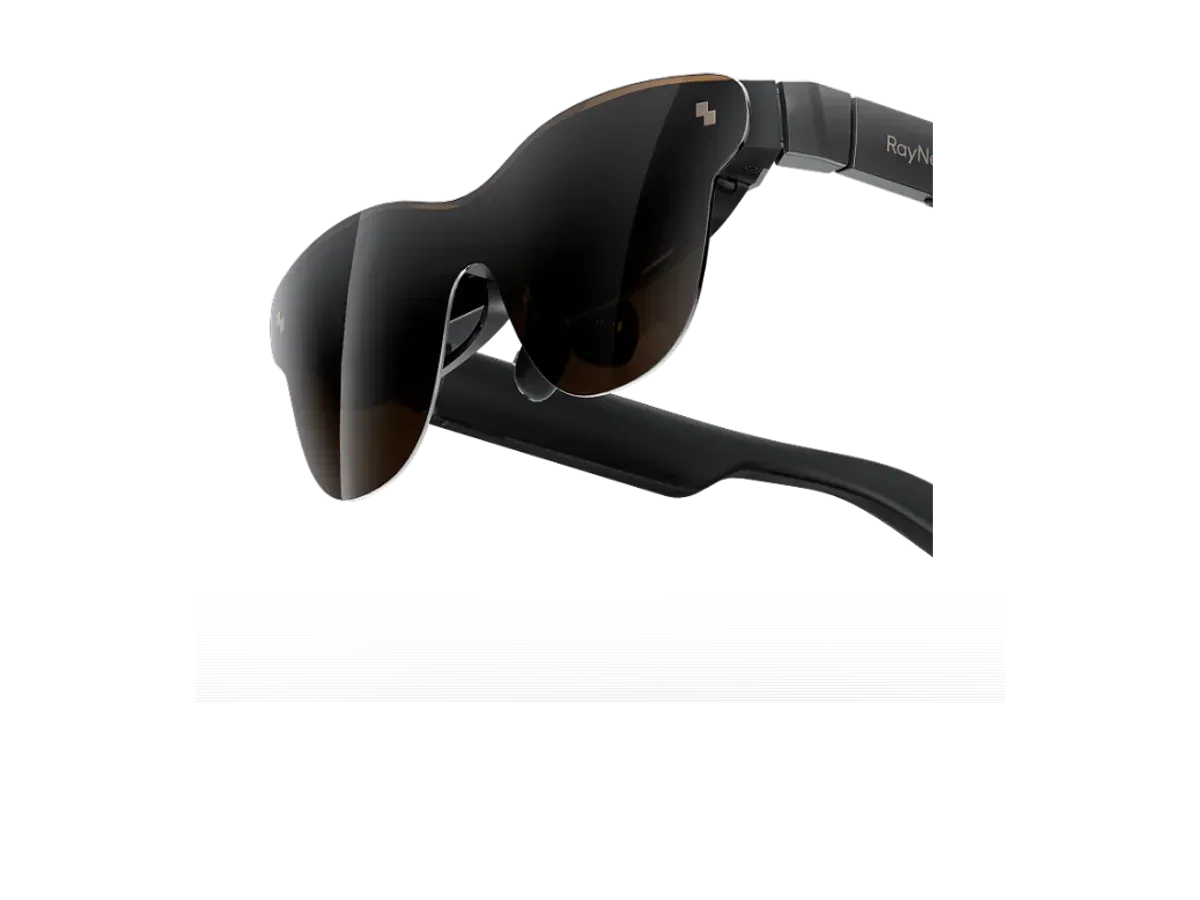
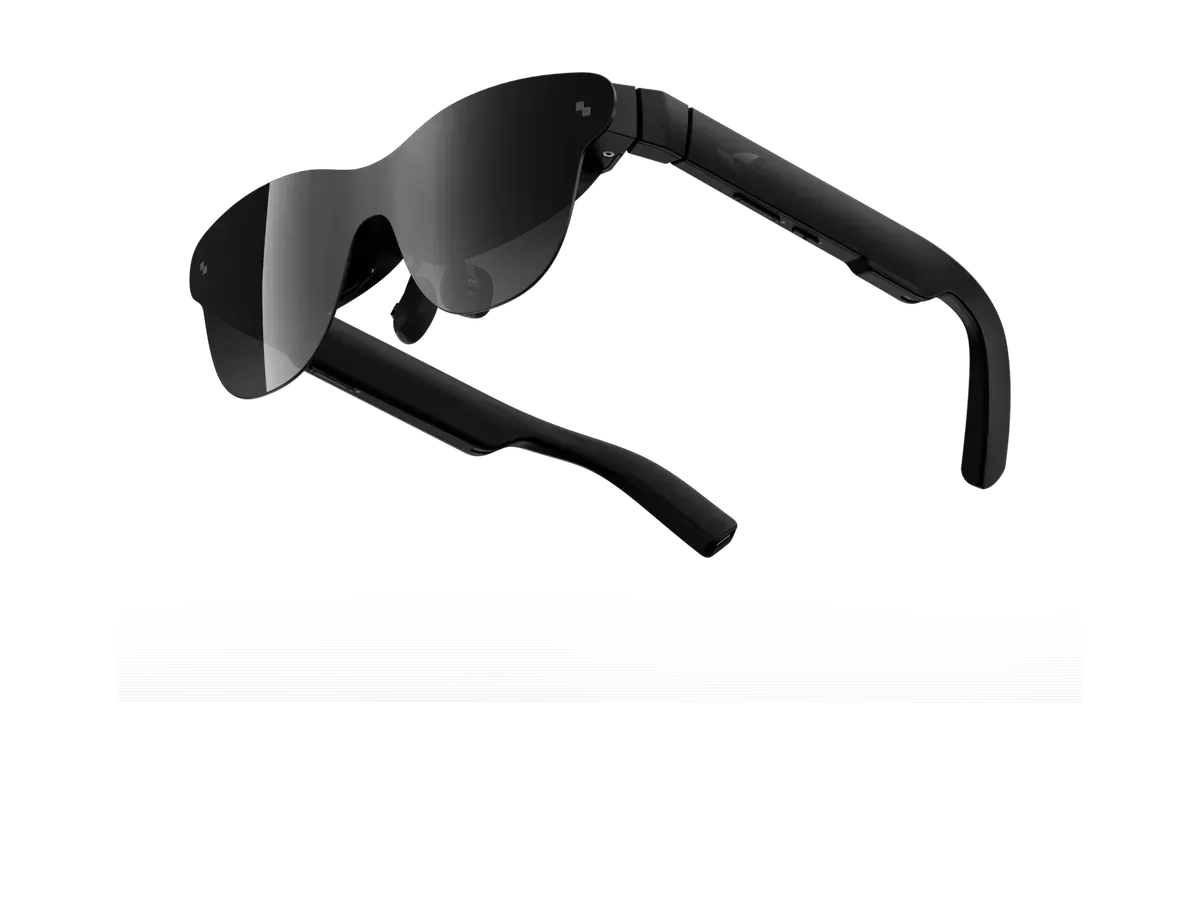
Windows machines split into two camps for display glasses, and knowing which one you own settles most of the setup questions before you buy. Laptops, ultrabooks, and handheld PCs with a USB-C port that carries DisplayPort Alt Mode video are the effortless camp: one cable, and Windows enumerates the glasses as a monitor — extend, duplicate, rearrange in Settings like always. Desktop towers are the second camp: their video lives on the graphics card’s HDMI and DisplayPort sockets, so the standard route is a powered HDMI-to-USB-C adapter between card and glasses. Our adapter and dock guide explains what that accessory does and why the powered part is non-negotiable.
A word of honesty that applies to this whole page: the compatibility behind the ranking is maker-declared — collected from each manufacturer’s published device lists — and we have not lab-tested these pairs. With PCs the declaration is low-risk, because the link is a plain DisplayPort monitor connection, but software features above that baseline vary by maker and model, and those are worth verifying against the maker’s current documentation for your exact pick.
Windows is where the software story is strongest
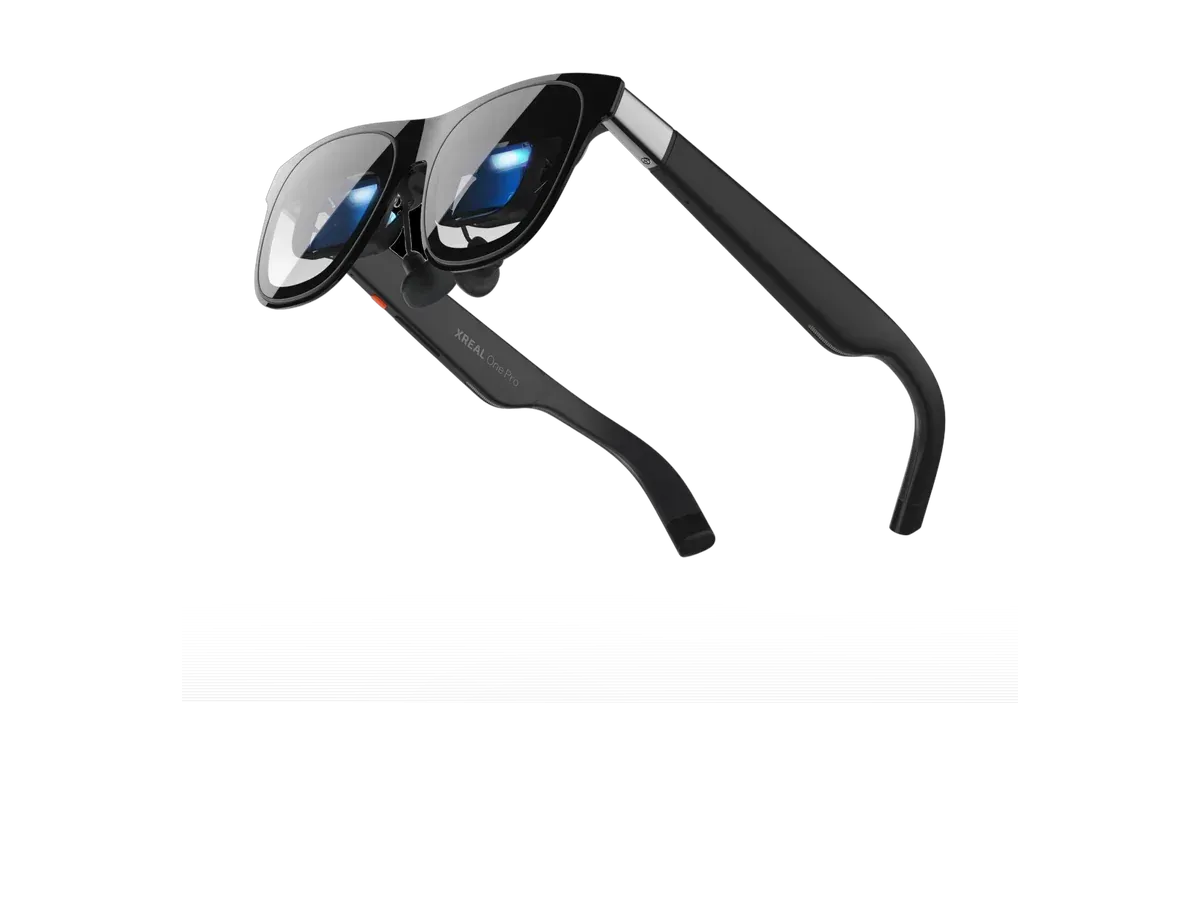
The multi-screen ambitions that get demonstrated at trade shows mostly ship on Windows first. Vendor desktop apps can stretch the single mirrored display into an ultrawide workspace or place several independent virtual monitors with head tracking; our virtual monitor glasses guide tracks which makers document which platforms. Hardware-anchored models are worth a look even here: pairs like the XREAL One Pro record their anchoring chip on the glasses themselves, so a stable pinned screen does not depend on any host app at all.
For work-first buyers the deeper cut is the monitor glasses pillar — the monitor-replacement question in full — and the productivity ranking, which weighs text sharpness and brightness for long multi-screen days. This page’s ranking deliberately balances both lives of a Windows machine: sharpness and brightness for the working hours, refresh rate and field of view for the evening ones.
PC gaming on glasses, honestly
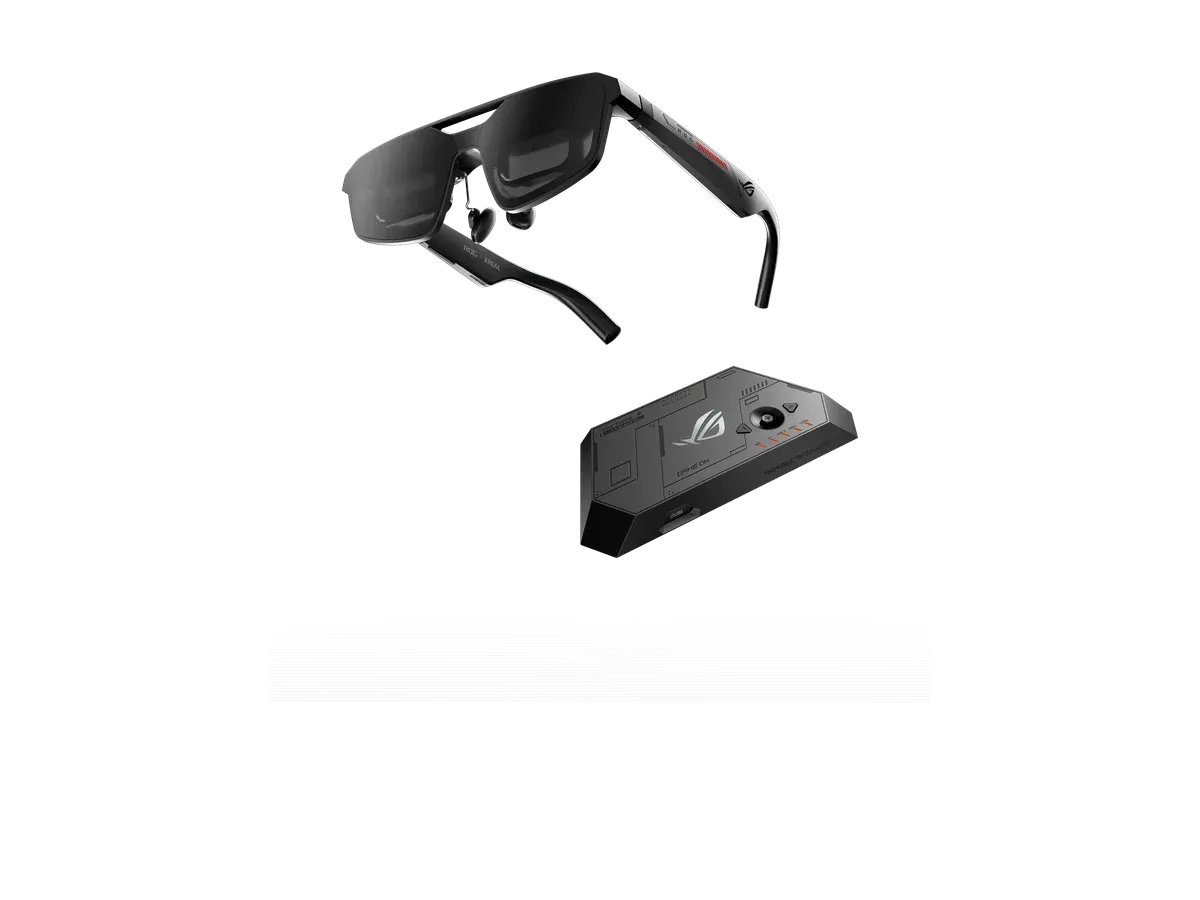
A wired DisplayPort link runs at the panel’s recorded refresh rate, and most current picks record 120Hz — smooth enough that the limiting factor is usually the game and the machine, not the glasses. What glasses give a PC gamer that no monitor can is placement: a cinema-scale screen from a couch, a bed, or an economy seat, with the tower streaming to a laptop or a handheld doing the carrying. The full gaming ranking scores the whole catalog across every console and host if gaming is the primary life; for the handheld-PC crowd specifically, the Steam Deck ranking, ROG Ally ranking, and Legion Go ranking narrow this same catalog to each machine’s recorded pairs.
Two buying notes reward the patient. First, check the recorded pixels-per-degree figure before committing to spreadsheet duty — the specs guide shows how to read it, and the difference between the high-40s and the mid-30s is the difference between print and projector. Second, if your desk already has monitors and your real itch is travel, weigh the glasses against a folding panel in our AR glasses vs portable monitors comparison — the honest answer depends on your bag, not your GPU.