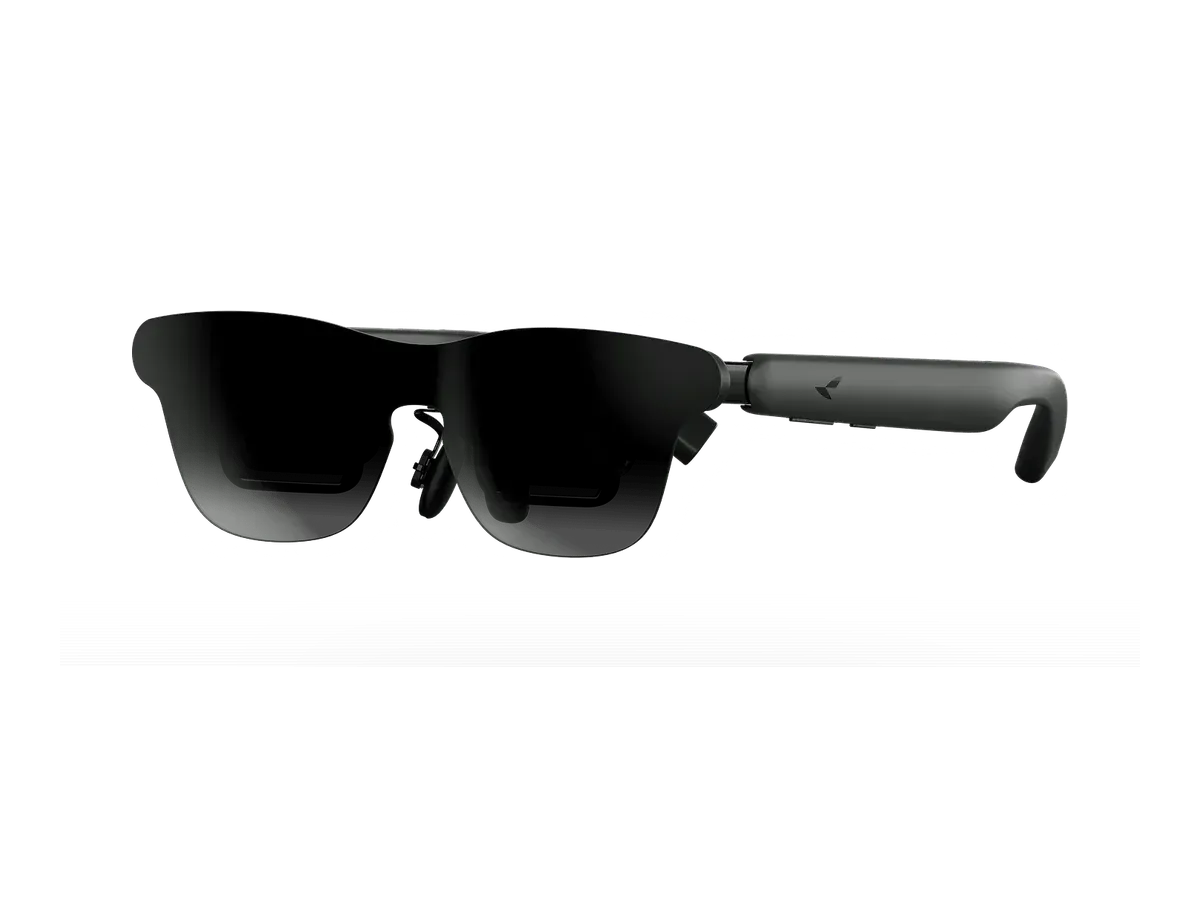
The Steam Deck is the single best host device in the entire display-glasses category, and it is not close. The reason is one line on Valve’s spec sheet: the Deck’s USB-C port outputs DisplayPort Alt Mode video, on every revision, LCD and OLED alike. That means a pair of tethered display glasses plugs into a Steam Deck with one cable and simply works — no dock, no adapter, no driver, no companion app. The handheld sees a monitor; you see a private screen that games at whatever size your glasses’ optics draw it. Nothing else in the console world is this clean: even the Switch 2 gates its USB-C video output behind a proprietary handshake that only vendor docks perform, and PlayStation and Xbox still speak HDMI only.
Everything ranked above records Steam Deck compatibility in our catalog. The same honesty note that governs all our device hubs applies here: compatibility records are maker-declared — collected from each manufacturer’s published compatibility lists — not lab-tested by us. With the Steam Deck the declaration is unusually low-risk, because the connection is a plain DisplayPort Alt Mode monitor link, but limitations that live in vendor software rather than in the cable are real, and they are exactly what this page spells out.
What SteamOS actually does with glasses
Plug in and the Deck mirrors its screen to the glasses — in Gaming Mode you get your game on the big virtual screen, with the built-in display and the glasses showing the same picture. Switch to Desktop Mode and SteamOS treats the glasses as a normal external monitor: you can extend instead of mirror, set resolution and refresh from KDE’s display settings, and run the desktop on the glasses alone.
The honest catch is refresh rate. Many current glasses record 120 Hz panels, but what a given game session delivers depends on the Deck’s own output mode and per-game settings; treat the recorded 120 Hz as the ceiling the hardware supports rather than a promise for every title. The second honest catch is software features: the multi-window virtual-desktop apps that several vendors ship — the ultrawide and multi-screen modes in their Windows and macOS software — mostly do not run on SteamOS. On a Deck you should buy for the plain-monitor experience: the recorded field of view, brightness, and weight decide what you get, and anything a vendor app adds on other platforms is a bonus that belongs to those platforms. Glasses whose spatial features run on the glasses’ own chip rather than in a host app are the exception worth noting, because self-contained anchoring works on any host, the Deck included.
Battery: the real cost of the second screen
Tethered glasses have no battery; the Deck feeds them. Driving both the internal panel and an external display costs real energy, so expect a visibly shorter session — how much shorter depends on the game, the brightness you run, and whether the internal screen stays lit. Three practical mitigations, in rising order of effort: turn the internal screen’s brightness to minimum while playing on the glasses; cap the frame rate, which on a Deck saves more battery than almost anything else; or seat a powered USB-C hub with DisplayPort passthrough between Deck and glasses, which keeps the console charging while it drives the display — the setup that turns a two-hour flight session into a whole-flight session. Any hub that does power delivery plus DP passthrough works; the glasses vendors’ own mobile docks are the documented version of the same idea, inventoried brand by brand in our adapter and dock guide.
The declared families, and what each one’s records say
XREAL on the Steam Deck
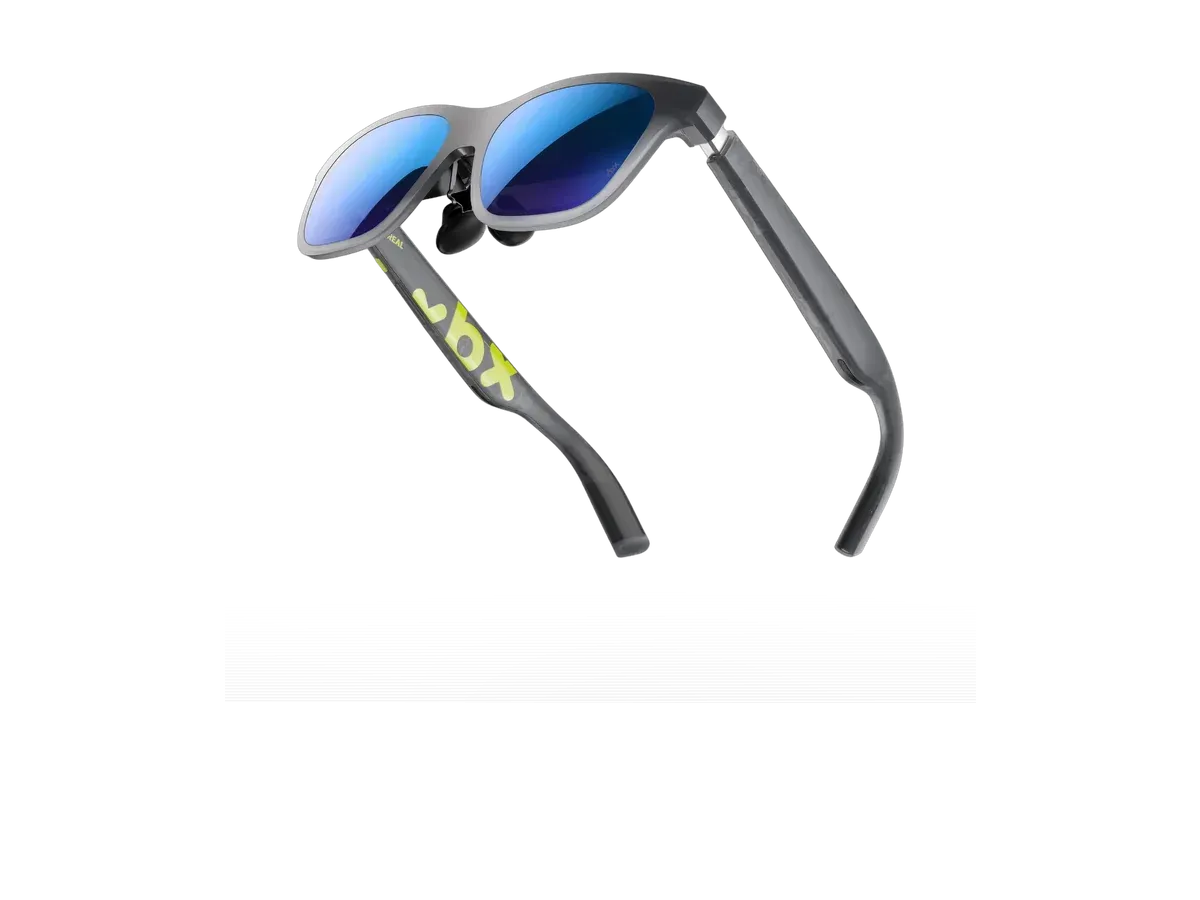
XREAL’s tethered line — from the XREAL Air 2 generation through the XREAL One, XREAL 1S, and XREAL One Pro — records Steam Deck support across the board, and the maker’s own compatibility pages name the Deck explicitly. The One-generation models carry their screen-anchoring chip on the glasses themselves, which is the detail that matters on SteamOS: head-anchored or stabilized screen modes keep working even though XREAL’s desktop software targets other platforms.
VITURE on the Steam Deck
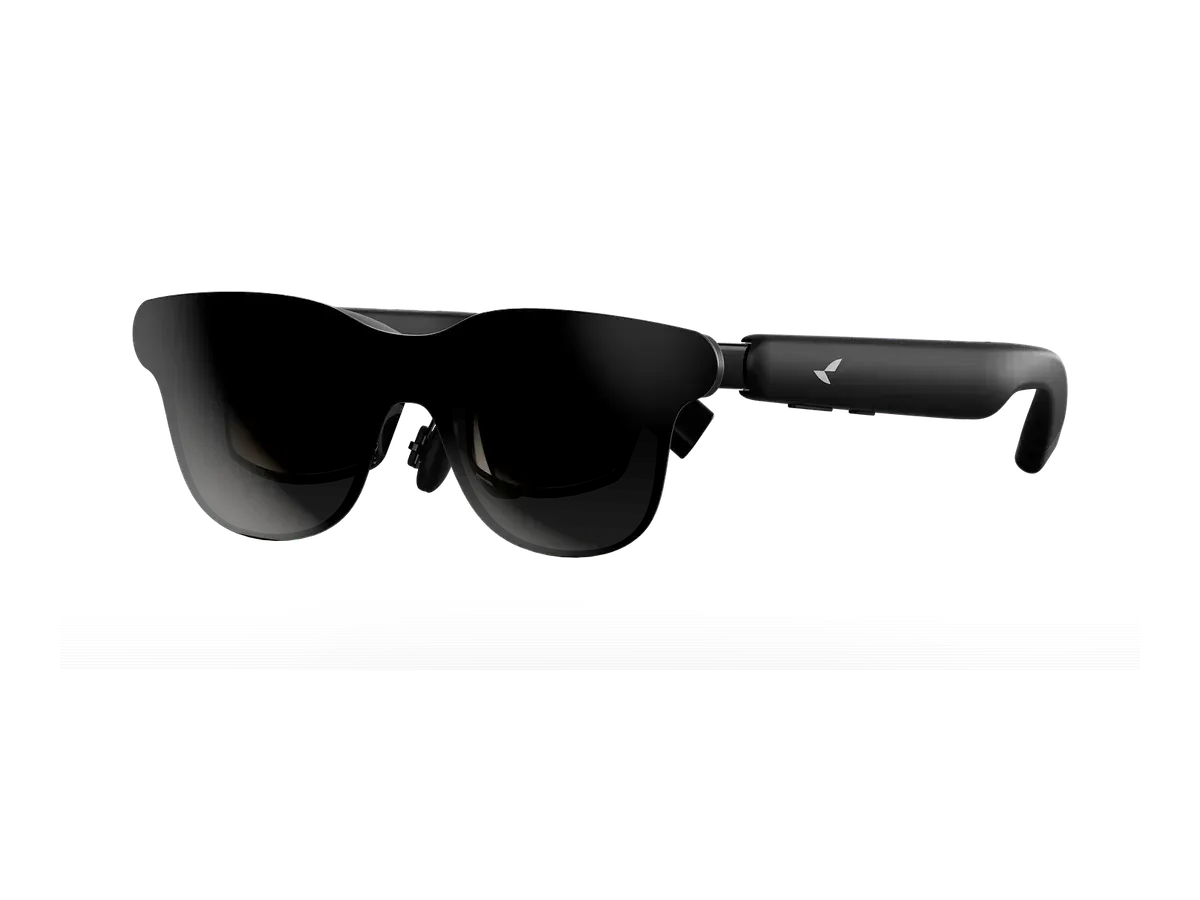
VITURE’s official compatible-devices table names the Steam Deck for its current line — the Luma Pro, Luma Ultra, Beast, and Pro 2 all record it. VITURE’s SpaceWalker multi-screen app documents Windows, macOS, Android, and iOS — not SteamOS — so on a Deck these run as plain, bright monitors; several record electrochromic dimming, which earns its keep in daylight.
RayNeo on the Steam Deck
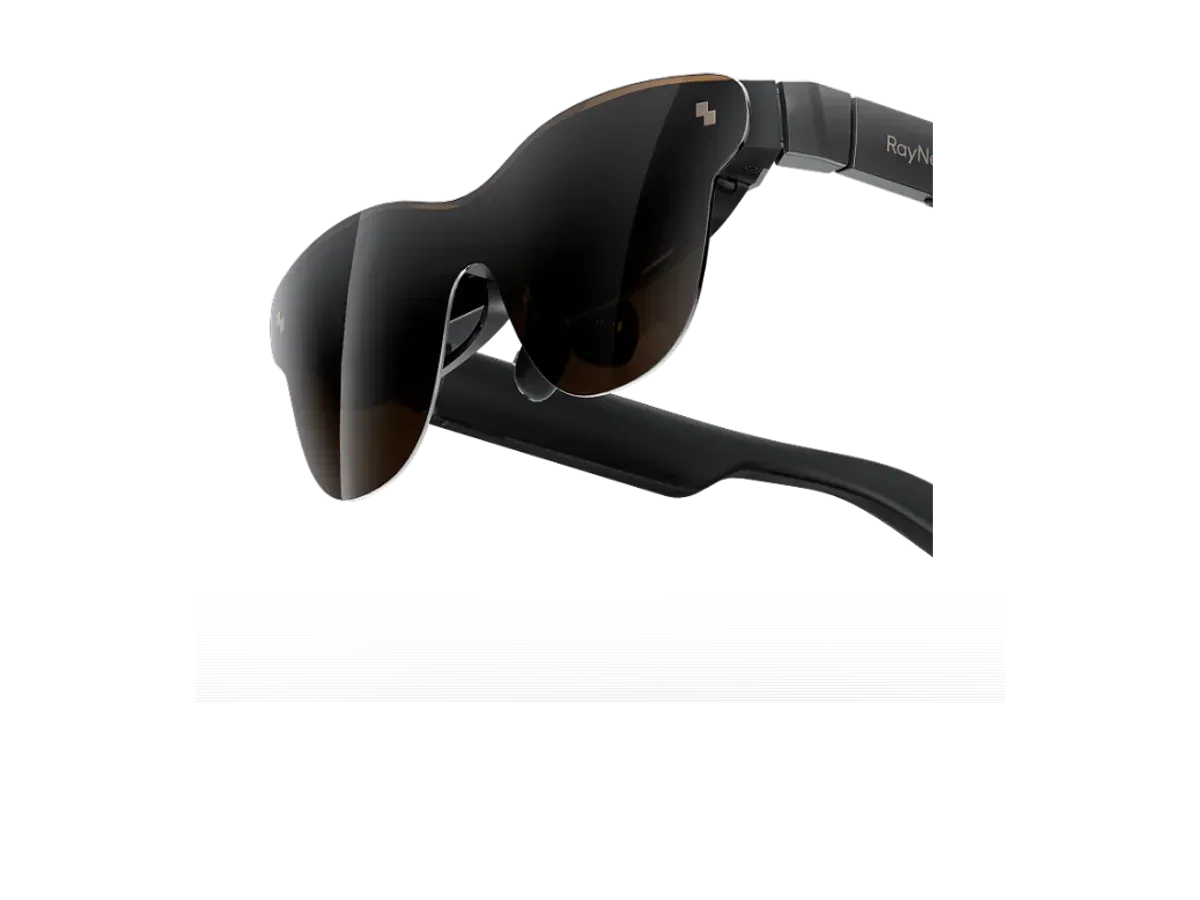
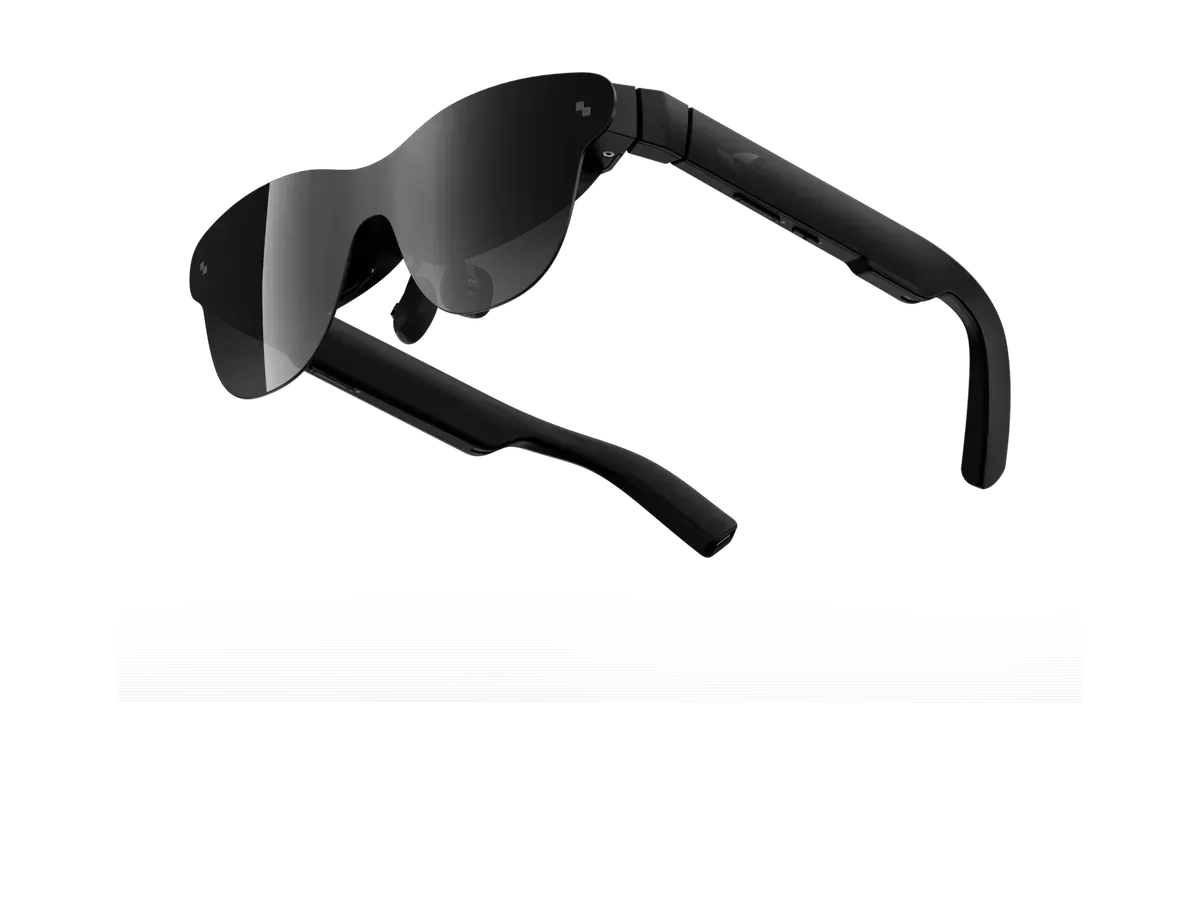
RayNeo’s Air line — including the Air 3s Pro and Air 4 Pro — records Steam Deck support from the maker’s compatibility lists, direct over USB-C. The GT-series models record a dedicated on-glasses 3DoF chip with pinned and follow modes, the self-contained kind of anchoring that survives the SteamOS software gap.
Rokid on the Steam Deck
The Rokid Max 2 records Steam Deck support as a plain DisplayPort Alt Mode display, with diopter adjustment dials built into the frame — recorded at 0.00 to -6.00, the one approach here where mild short-sightedness is handled without inserts. Its predecessor the Rokid Max records the same host support and the same dials, but is discontinued and so sits outside the ranked list.
Steam Deck on a plane
This pairing is the honest answer to gaming in an economy seat: the Deck stays in the seat pocket or on the tray, the screen hangs in front of your eyes at cinema scale, and the cabin sees nothing. Two specs from the recorded sheets matter most at 35,000 feet: lens dimming (electrochromic dimming or a snap-on shade keeps a bright cabin out of a dark game), and weight, because a heavy frame outstays its welcome mid-flight. Bring the powered-hub setup from the battery section if the flight is long — seat-back USB rarely feeds a Deck driving two displays. For the movies-first version of the same trip, the movies and travel ranking weighs the same catalog for video instead of games.
Steam Deck AR glasses: quick answers
Do AR glasses work with a Steam Deck? Yes. Every pair in this ranking connects to the Deck’s USB-C DisplayPort Alt Mode output and works as an external screen.
Do XREAL glasses work with Steam Deck? Yes. XREAL’s tethered display glasses connect directly with one USB-C cable, and One-generation models keep their on-glasses screen-anchoring modes on SteamOS.
Where to go next
The ranking above narrows the catalog to declared Steam Deck pairs and scores them for handheld play; the full gaming ranking opens the field to every console and host, the Switch 2 hub covers Nintendo’s first glasses-capable handheld and its dock-based routes, and the same bare-cable DisplayPort story the Deck tells continues on the Windows handhelds — the ROG Ally ranking and Legion Go ranking narrow the catalog to each machine’s declared pairs. When you are down to two candidates, a side-by-side spec comparison settles it line by line — field of view, brightness, weight, and current price, straight from the recorded data.